
1
Choose a video file
Upload a video from your computer or phone. Common formats such as MP4, MOV, WebM, MKV, and AVI are supported.
Use this free online video to MP3 converter to extract audio from video files and save an MP3 for remixing, vocal removal, karaoke, editing, or music production.
MP4, MOV, WebM, MKV, AVI, and other common video files
Up to 100 MB and 20 minutes. Your file is used only to create this MP3.
Video To MP3 Guide
Extract the audio you need from a local video, then take it into the rest of your music workflow.
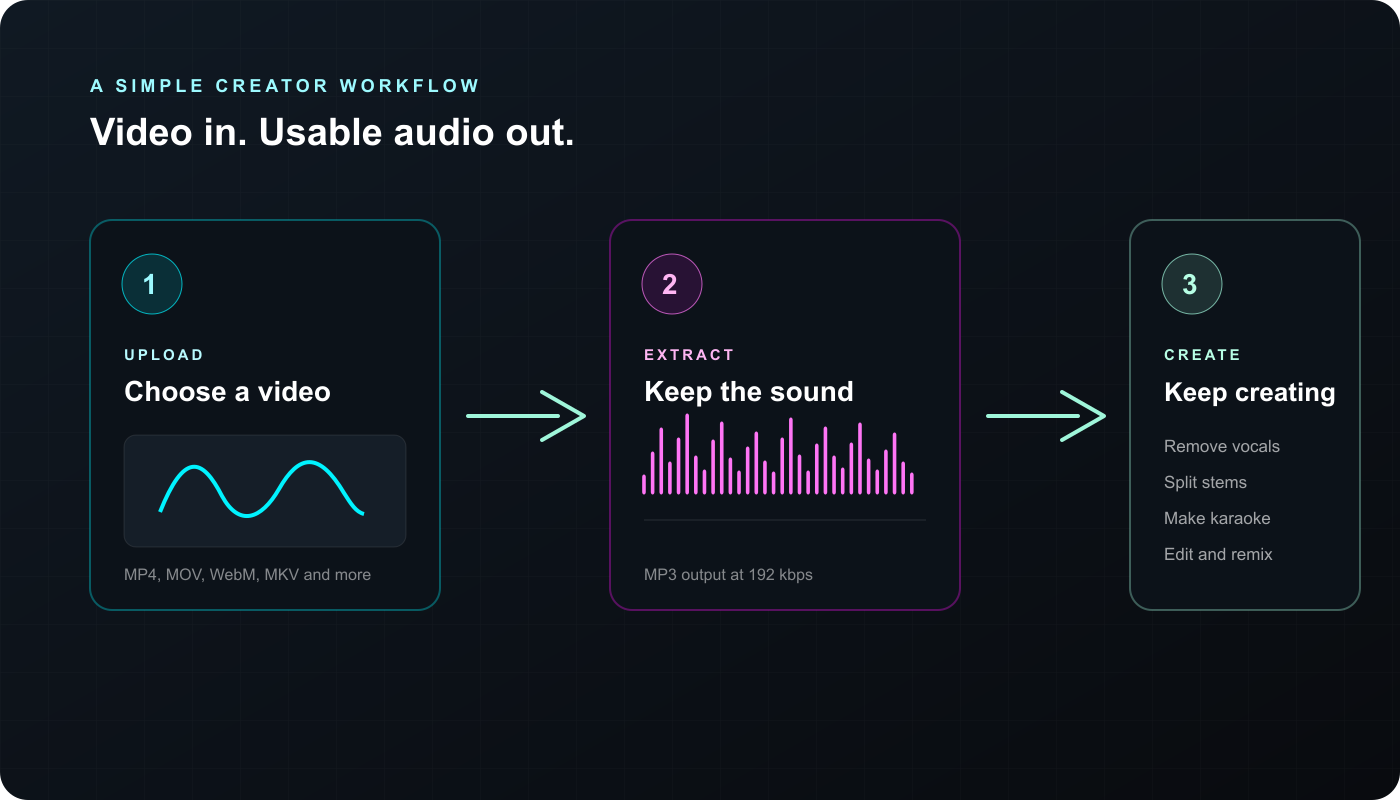
Upload a video from your computer or phone. Common formats such as MP4, MOV, WebM, MKV, and AVI are supported.
SongReelAI converts the audio track to a 192 kbps MP3. Use it to extract MP3 from video files without adding them to your music library.
Download the MP3, then use it with Vocal Remover, Stem Splitter, Karaoke Maker, or your own editing workflow.
Online Audio Extraction
A video to MP3 converter separates the audio track from a video file and saves it as a portable MP3. As a video audio extractor, it is useful when the sound matters more than the picture: a voiceover, an interview, a rehearsal, a screen recording, music, or a reference clip.
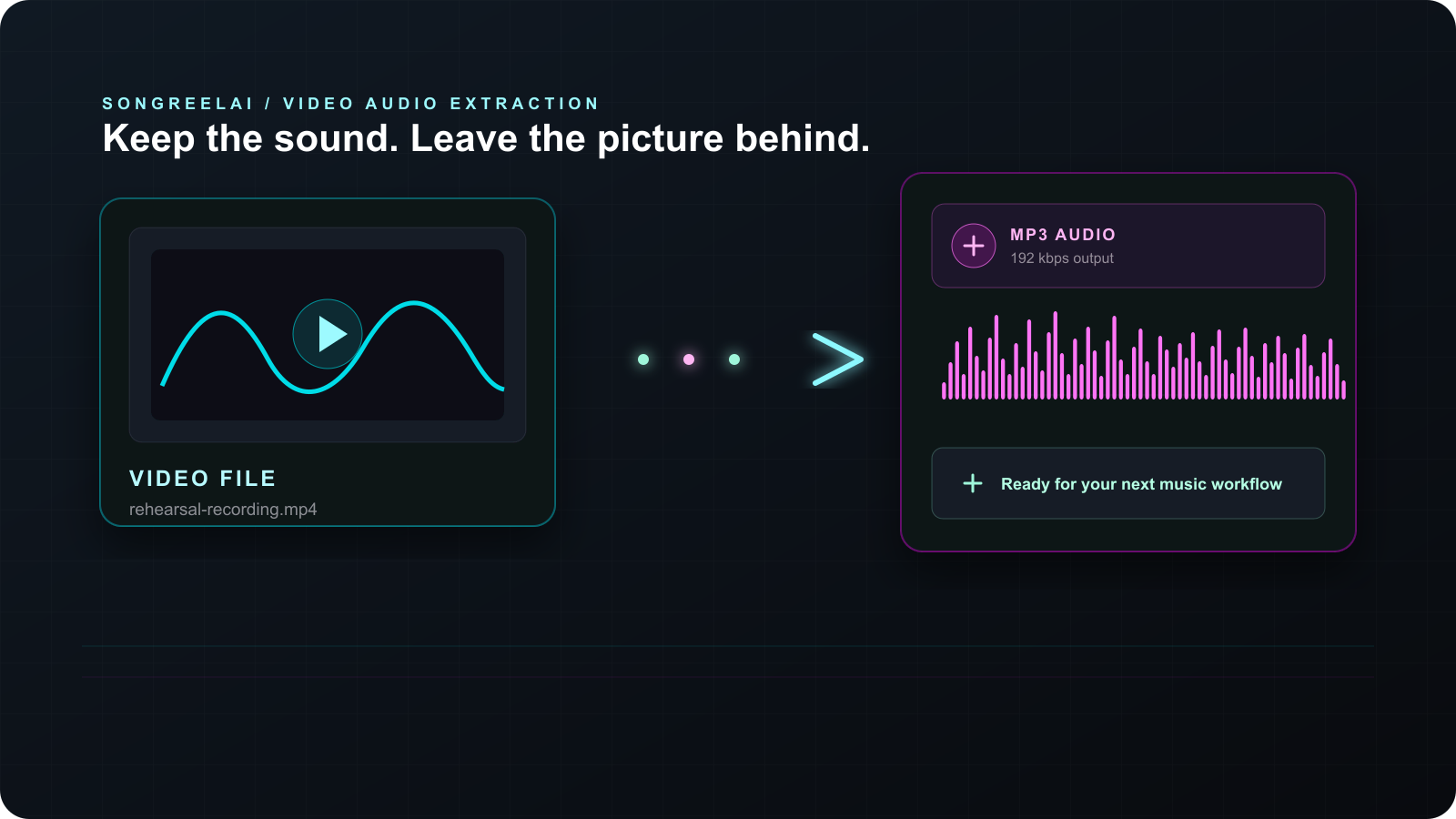
From video file to usable audio
Extract first, then keep creating in the tools that come next.
Remove the video stream while keeping the source sound.
MP3 works across phones, browsers, editors, and players.
Trim, clean up, remix, or move the file into another tool.
The output keeps the source quality; it does not create missing detail.
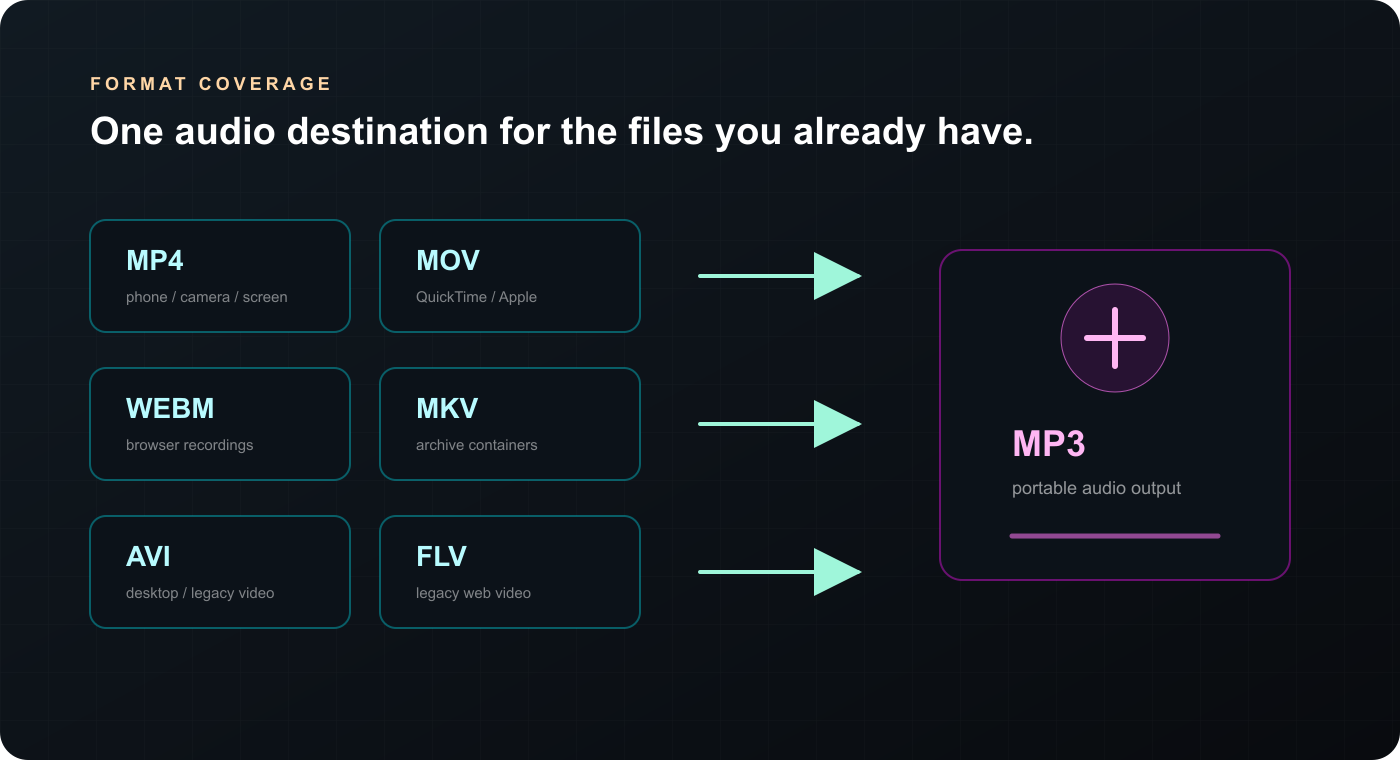
Supported Video Formats
Start with the video container you already have. This online video to MP3 converter reads a supported audio track and creates one MP3 download for your next step.
Convert an MP4 video to MP3 and extract audio from the most common camera, phone, screen recording, and social video format.
MP4, MPEG-4, H.264 video
Turn a MOV video to MP3 from QuickTime and Apple devices so you can edit, share, or use it in a music workflow.
iPhone, iPad, QuickTime exports
Convert WebM video to MP3 from browser recordings and clips into a lightweight audio file for editing or reference.
WebM, VP8, VP9 video
Keep the audio track from a Matroska video without carrying the original video container forward.
MKV, common audio streams
Extract sound from older camera, desktop, and archive videos when you only need the audio.
AVI and common codecs
Save audio from legacy Flash video files for cleanup, reference, or content repurposing.
FLV and supported audio tracks
Format support depends on the audio codec inside the video. If a file cannot be read, export it again with a standard H.264 video and AAC audio track, then try the conversion again.
Video Audio Use Cases
Extract audio from a screen recording, phone video, interview, rehearsal, or music clip, then choose the workflow that fits what you want to make.
Screen recordings
Keep the voice, meeting audio, tutorial narration, or demo sound from a recording without the visual track.
iPhone and Android
Turn a camera clip, rehearsal take, or phone recording into an MP3 you can listen to, trim, or send into another tool.
Music and remixing
Extract a music track from a video, then move into vocal removal, stem separation, sampling, or arrangement work.
Voice and dialogue
Save spoken audio from interviews, lessons, podcasts, product demos, and other videos where the voice is the part you need.
Podcast prep
Create an MP3 from a recorded conversation so you can review the audio, edit a short clip, or prepare a podcast workflow.
Sound and reference
Extract sound design, ambience, or a reference track from a video before you continue editing in your audio software.
Audio quality
The current converter creates a 192 kbps MP3. That is a practical choice for voice, music reference, social clips, and everyday listening. MP3 is compressed, so it cannot restore detail that was missing from the source video. For uncompressed production work, a future video-to-WAV option would be the better choice.
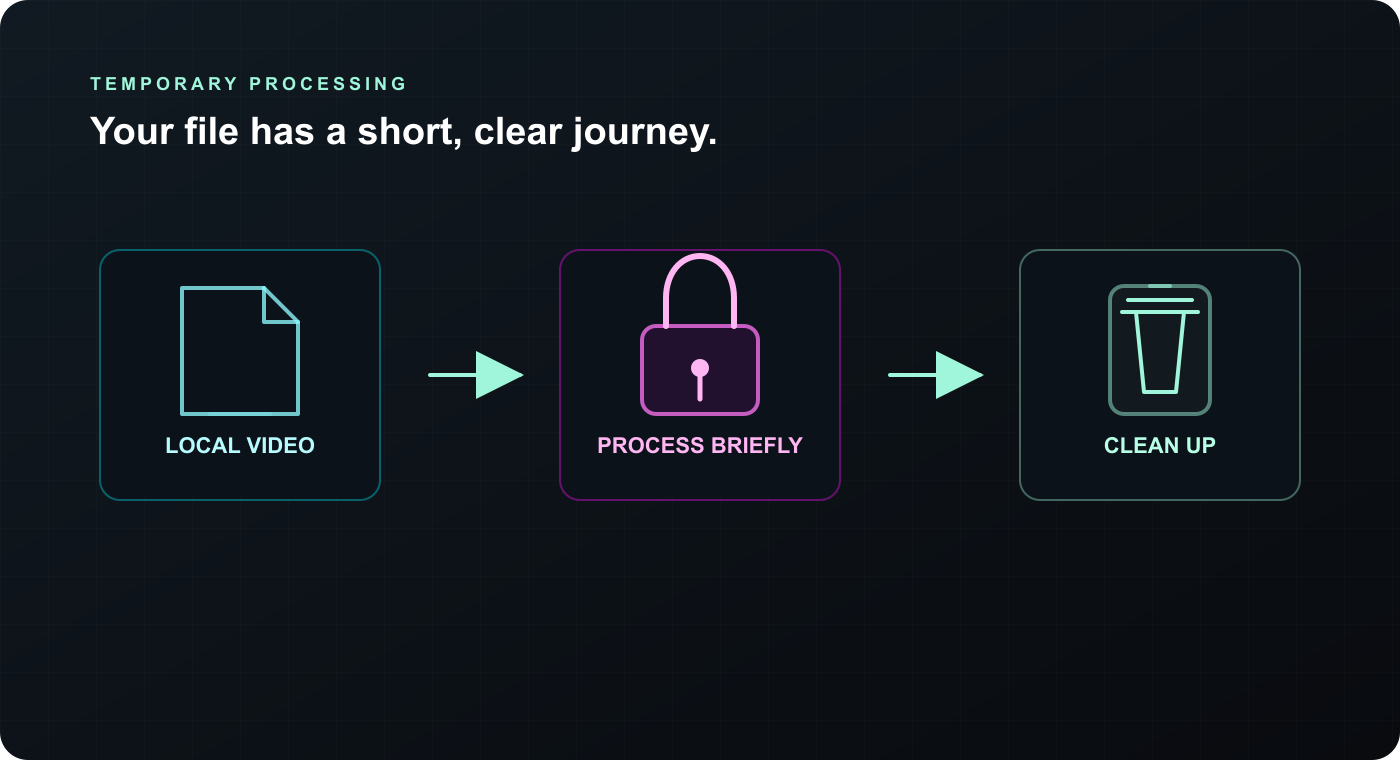
Privacy and control
This page accepts local files only. A temporary processing copy is used to create the MP3 and is removed when the request finishes; the result is not added to your music library. Files are limited to 100 MB and 20 minutes, and you should only upload material you own or have permission to process.
Video To MP3 FAQ
Clear answers about file formats, privacy, limits, and what you can do with the MP3 next.
A video to MP3 converter extracts the audio track from a video file and saves it as an MP3. It works as a simple video audio extractor when you want to keep dialogue, music, voiceover, or sound effects without the video stream.
The tool is designed for common video formats including MP4, MOV, WebM, MKV, AVI, and FLV. Format support can depend on the video codec inside the file, so a different export may help when a file cannot be read.
No account is required for this conversion tool. You can upload a local video, create an MP3, and download the result without adding it to your SongReelAI library.
The conversion uses a temporary server-side processing file so the audio can be created. The temporary input and output are removed when the request finishes. Do not upload material you are not allowed to process, and review the Privacy Policy for more details.
Videos must be 100 MB or smaller and no longer than 20 minutes. Actual processing speed can vary with the codec, device, and current server load.
Yes. After downloading the MP3, you can take it to SongReelAI's AI Vocal Remover, AI Stem Splitter, or AI Karaoke Maker to continue a music creation workflow.
This page converts local video files only. Only process videos you own or have permission to use; it does not provide a URL downloader.
To extract audio from video, choose a local file from your device, upload it to the converter, and select Extract audio as MP3. The video track is removed and the audio is returned as a downloadable MP3.
Yes. You can upload an MP4 video to MP3 conversion, create a 192 kbps audio file, and download the MP3 for listening, editing, remixing, vocal removal, or karaoke preparation.
Yes. The page works in a modern mobile browser. Choose a video from your Photos or Files app, wait for the conversion to finish, and save the MP3 to your device.
No. Conversion removes the video stream and encodes the existing audio as MP3; it cannot restore detail that was missing from the original recording. Cleaner source files usually produce better results.
The current output is encoded at 192 kbps, a practical balance for voice, music reference, editing, and everyday listening. A future WAV workflow may be better when you need uncompressed audio for production.
No. A video needs to contain a readable audio stream. If the video is silent or uses an unsupported codec, the conversion will fail and you should export it again with a standard audio track.
You can listen to it, trim it in an editor, use it as a reference, or continue in SongReelAI with AI Vocal Remover, AI Stem Splitter, or AI Karaoke Maker.
Extract Your Audio
Upload a local video, download the audio, and continue with SongReelAI tools for vocals, stems, karaoke, and music production.